
Have you ever wondered how attackers still get into Microsoft 365 accounts when Microsoft MFA is already turned on? The answer may not be what you’d expect. In most cases, MFA isn’t being broken at all. Attackers are simply going after the sign-in methods that are easiest to trick, like text message codes and approval taps on a phone.
This is not to say that Microsoft MFA isn’t doing its job. It still stops a lot of attacks that a password alone never could. The good news is that Microsoft MFA already comes with stronger options built in, and Microsoft itself is now moving its customers toward them.
In our last article, we talked about why a stolen login is so hard to catch once it gets through, and why ITDR should sit higher on your monitoring list. This time, we look at the other side of that story: making the login itself much harder to steal. That path leads to passwordless sign-in, which is where Microsoft is taking its customers next.
What Microsoft MFA Does and How It Works
Microsoft MFA asks your users to prove who they are in two ways before letting them in. The first is usually their password. The second is something only they should have, like their phone or a security key. This is the core idea behind MFA authentication, where one extra check means a stolen password is no longer enough on its own.
Microsoft 365 gives you a few ways to handle that second check. Your users can receive a code through text message or a phone call, approve a push notification in the Microsoft Authenticator app, type a six-digit code from an authenticator app, or sign in using a passkey or a physical security key.
Two of those options are worth pointing out early. Passkeys and security keys do not just add a second check, they can replace the password entirely. This is what passwordless authentication means in practice. Your user proves who they are with the key itself, so there is no password left for anyone to steal, phish, or reuse. All of these are a big step up from using a password alone. However, they are not equally strong, and that difference is where most of the risk sits today.
Why the Method You Choose Matters
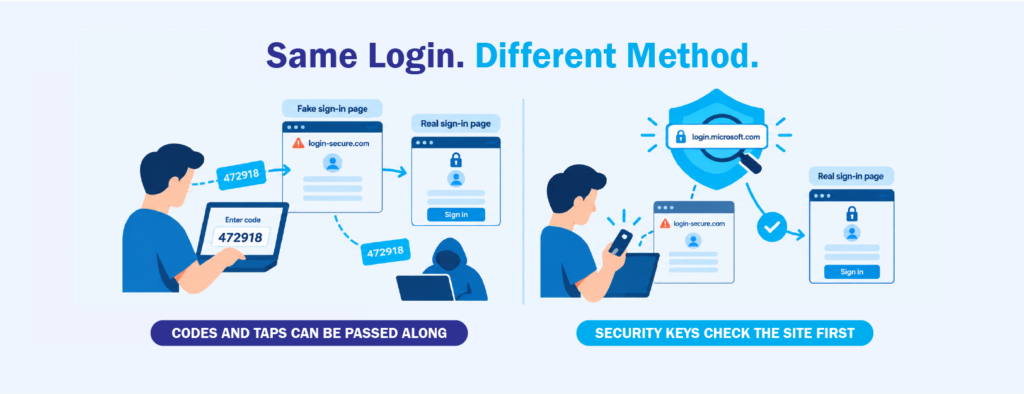
When an account protected by Microsoft MFA gets taken over, most people assume a hacker found a way to break through Microsoft’s security. That is rarely what happens. More often, the attacker tricks the user into completing the check for them, which is how most MFA bypass attacks actually work.
The most common trick is a fake Microsoft login page. Let’s say one of your employees receives an email about an HR policy update and clicks the link. The page looks exactly like the usual Microsoft sign-in, so they type their password and their code like they always do. Behind the scenes, the fake page passes everything along to the real Microsoft site and keeps the session that comes back. Your employee gets in normally, and so does the attacker. This is called an adversary-in-the-middle (AiTM) attack, and it is now sold as a ready-made kit. In April 2026, Microsoft tracked one campaign that reached over 35,000 users across 26 countries in just three days.
Another trick is even simpler. If the attacker already has the password, they can keep sending approval prompts until the user taps “Approve” just to make them stop. It sounds careless, but after a long workday, it happens more often than most IT teams would like.
Both tricks depend on the same weakness. A code or a tap can be passed along or pressured out of a person. Phishing-resistant MFA, like passkeys and security keys, works differently. It checks that the sign-in is happening on the real Microsoft site before it responds, so a fake page gets nothing it can use. This is the direction Microsoft, CISA, and other security bodies continue to recommend.
4 Ways to Strengthen Your Microsoft MFA
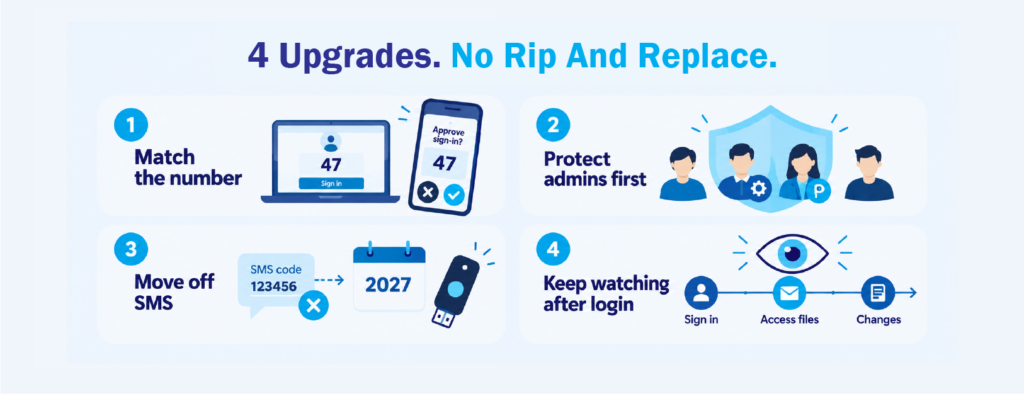
None of these require you to replace what you already have. Each one builds on your current Microsoft MFA setup, and you can take them one step at a time.
Make Push Prompts Harder to Approve by Accident
Microsoft Authenticator now asks users to type in a number shown on their login screen before they can approve a sign-in. This is called number matching, and it fixes the “just tap Approve” problem since the user has to be looking at the real login screen to know the number.
You can take this further by turning on additional context in the Microsoft Entra admin center. This shows the app name and the location of the sign-in inside the prompt. If an employee based in Makati sees a request coming from another country, it becomes much easier for them to decline it.
Start With Your Admin and Finance Accounts
You don’t need to switch everyone over at once. It is always best practice to start with the accounts attackers want the most. Microsoft recommends requiring phishing-resistant MFA for admin roles such as Global Administrator, Exchange Administrator, and Security Administrator. Finance, HR, and executive accounts are worth adding as well, as they are common targets for payment and payroll scams.
In Entra ID, you can set this up through a Conditional Access policy using the “phishing-resistant MFA” authentication strength. Before switching it on, make sure these users have already registered a passkey or security key, otherwise you might lock them out. Keeping an emergency access account excluded from the policy also gives you a safety net.
Plan Your Move Away From SMS and Voice
Microsoft MFA is already heading in this direction. Passkeys are rolling out as the default sign-in method in Entra ID, and starting February 1, 2027, Microsoft will no longer offer SMS and voice codes as a built-in feature. Users who still rely on text codes will be asked to register a passkey the next time they sign in.
It helps to plan for this now rather than rush once the deadline is near. Check which of your users still rely on SMS or voice. Also think about staff who share computers, work in the field, or would rather not install work apps on their personal phones. These are usually the users who will need a physical key instead of a phone-based passkey.
Keep an Eye on What Happens After the Sign-In
Even the strongest Microsoft MFA method only checks the moment someone logs in. What happens after that matters just as much. A new MFA method added from an unfamiliar location, or an inbox rule created a few minutes after sign-in, can both be early signs that something is wrong. NIST’s zero trust guidance makes the same point, recommending that trust be checked throughout a session and not only at the start.
This is where identity monitoring helps. It watches how accounts behave over time inside Entra ID and Microsoft 365, so that anyone who does slip through can be caught early. A stronger login keeps most attackers out, while monitoring catches the few who manage to get in.
Where Passwordless and Security Keys Fit Into Microsoft MFA
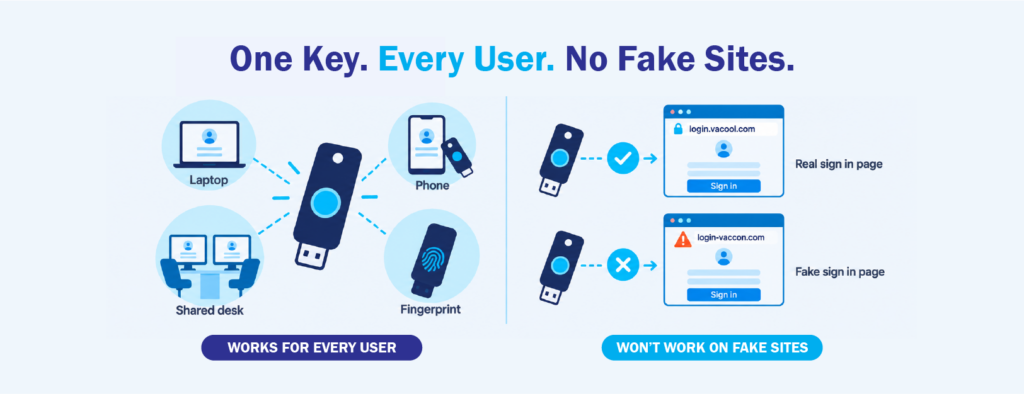
Passwordless often gets treated as a separate project, but it is really the same road further along. Your first step is making the second check harder to fool. The next step is asking why the password needs to be there at all.
Most of the attacks covered above start with a password that already works, usually taken from an old breach or a fake sign-in page. Remove the password from the sign-in, and those attacks lose their starting point.
In Microsoft 365, this happens through passkeys and FIDO2 security keys. Your user signs in with a tap, a PIN, or a fingerprint, and Entra ID accepts that as the full sign-in. For many teams, a physical key is the easiest way to get there. Since Entra ID supports FIDO2 keys directly, they fit into the Microsoft MFA setup you already have. They also cover situations where phones fall short, like shared workstations or staff who would rather keep work apps off their personal devices.
Just keep in mind that passwordless rarely happens all at once. Most teams run it alongside their current setup, starting with admins and a small pilot group, then expanding as older apps catch up.
At CT Link, we work with Feitian to help Philippine businesses make this move. Feitian’s keys are FIDO2 certified and verified for Microsoft Azure, and come in USB-A, USB-C, NFC, and fingerprint options to suit different types of users.
Common Questions About Microsoft MFA
Is Microsoft MFA still worth using if it can be bypassed?
Yes. It still blocks a large share of account attacks. Most bypasses go after weaker methods like codes and push prompts, and moving to phishing-resistant options closes most of that gap.
What is the strongest Microsoft MFA method?
Passkeys and FIDO2 security keys. They’re tied to the real Microsoft sign-in page, so fake login pages can’t use them.
Do security keys work on phones?
Yes. NFC and USB-C keys work with many Android phones and iPhones, as well as Windows, macOS, and Linux computers.
Intersted in learning more about Microsoft MFA and Passwordless logins? Contact us at marketing@ctlink.com.ph to set up a consultation with us today!