
Microsoft Teams has become the main workspace for many businesses in the Philippines. Projects, client files, meeting recordings, and daily conversations now all happen in one place. Because of this, many IT teams assume their Teams data is stored in Teams itself, and that a Microsoft 365 Backup that covers email is enough to keep it safe.
The reality is that Teams doesn’t store most of its own data. It pulls content from Exchange Online, SharePoint, and OneDrive and shows it all in one window. Each of these services has its own rules for how long deleted data is kept and how it can be restored. If your backup only covers one or two of them, some of your Teams data may already be unprotected.
Below, we’ll take a closer look at where Teams data actually lives, which areas are most often missed, and what a complete Microsoft 365 Backup should cover for companies that rely heavily on Teams.
Where Is Microsoft Teams Data Stored?
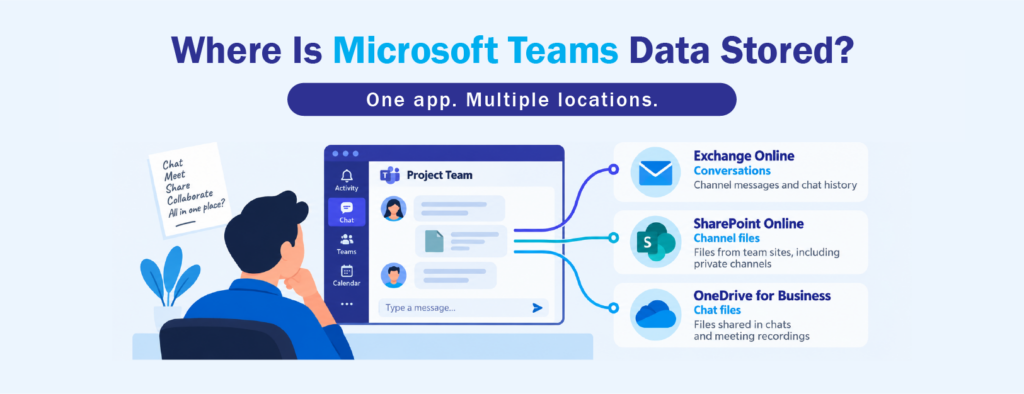
Whenever a user sends a message, shares a file, or records a meeting, Teams saves each item to a different Microsoft 365 service. For the average user, this happens in the background and doesn’t change how they work. For IT admins, though, it means protecting Teams really means protecting several services at once.
According to Microsoft’s documentation, Teams data is stored in these locations:
- Channel files: Stored in the SharePoint site connected to the team. Private and shared channels each have their own separate SharePoint site.
- Chat files: Files shared in one-on-one or group chats are saved in the sender’s OneDrive, inside a folder called “Microsoft Teams Chat Files.”
- Channel conversations: Saved in the team’s group mailbox in Exchange Online.
- Private and group chats: Saved in hidden folders inside each user’s Exchange mailbox.
- Meeting recordings: Saved to OneDrive for regular meetings, or to SharePoint for channel meetings.
This means a single Teams project can have its files in SharePoint, its attachments spread across several people’s OneDrive accounts, and its conversations in Exchange. A Microsoft 365 Backup that only protects mailboxes, or only SharePoint, leaves the rest of that project exposed.
Why Microsoft 365 Backup Often Misses Teams Data
One of the most common assumptions is that Microsoft already backs up everything. Microsoft does keep its services available and protects its own infrastructure. However, the Microsoft Services Agreement recommends that customers regularly back up their own content. Microsoft is responsible for keeping the platform running, and businesses are responsible for protecting their data.
Timing is another reason. Many companies set up their Microsoft 365 Backup years ago, when email was the main concern. They added mailboxes and maybe OneDrive, but never revisited the setup once Teams became the center of daily work. New teams and channels are created all the time, and any that the backup doesn’t pick up automatically stay unprotected until someone notices. Usually that’s after something has already been lost.
Why Restoring Teams Data Is Harder Than It Looks
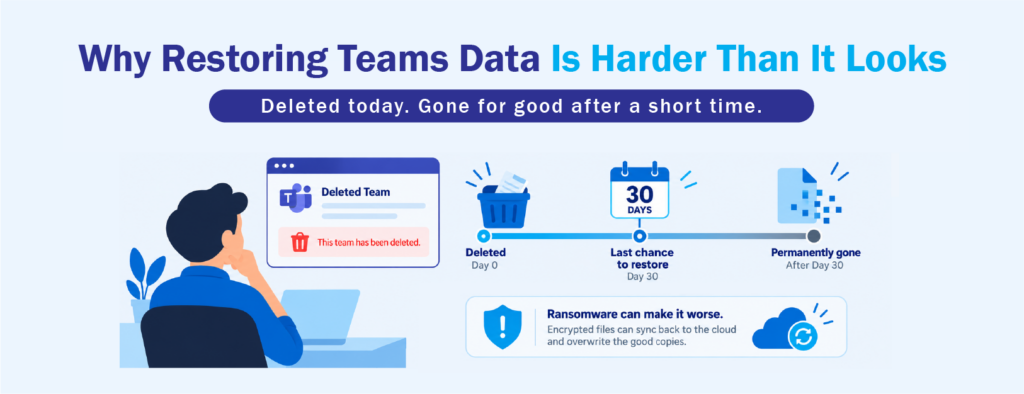
Microsoft does offer some built-in recovery options. Each team is connected to a Microsoft 365 group, so when a team is deleted, admins can restore it within 30 days. After that, the group, its SharePoint site, and its mailbox are permanently removed.
The more common problems are smaller but just as frustrating. Below are a few situations where the built-in tools tend to fall short:
- Deleted or overwritten files: The recycle bin and version history can help, but both have time limits and aren’t designed for restoring data from months ago.
- Ransomware: OneDrive and SharePoint sync with users’ computers, so files encrypted by ransomware can sync back to the cloud and replace the clean versions. For this reason, CISA’s #StopRansomware Guide recommends keeping backups separate from your main environment.
- Former employees: When a user’s account is permanently deleted, everything in their OneDrive goes with it, including files they shared in Teams chats.
In each of these cases, the goal isn’t to bring back an entire team. It’s to restore one specific file, folder, or conversation. A good Microsoft Teams backup should be able to handle both.
Channel Files and the SharePoint Connection
Channel files hold most of a team’s important work, so it’s worth understanding how they’re stored. Every standard channel in Teams has a matching folder in the team’s SharePoint document library. When users open the Files tab in a channel, they’re actually browsing SharePoint.
This affects your backup in two ways. First, SharePoint backup and Teams file protection are basically the same task, so your Microsoft 365 Backup needs to include team sites, not just OneDrive. Second, private and shared channels create their own SharePoint sites. If your backup only covers the main team site, files in these channels can be left out without anyone realizing it. Companies that use private channels for sensitive work, such as finance or HR, should pay close attention to this.
Teams Data That Commonly Gets Missed
Even companies that believe they’re fully covered can have gaps in their Teams protection. Based on how Teams stores its data, these are the areas that slip through most often:
- Chat attachments from resigned employees: Since chat files live in the sender’s OneDrive, they disappear once that account is permanently deleted. For businesses with regular staff turnover, this can quietly wipe out files shared with clients, suppliers, and coworkers.
- Private and shared channel content: These channels use their own SharePoint sites, so a backup set up only around the main team site can miss them.
- Meeting recordings: Recordings are often treated as temporary, but they usually contain trainings, client walkthroughs, and decisions that were never written down.
It’s also important to understand the difference between Teams data retention and backup. Retention policies in Microsoft 365 keep data available for compliance, eDiscovery, and legal holds. They don’t give admins an easy way to put a deleted channel conversation or file back where it was. Both are useful, but they solve different problems, and one can’t replace the other.
Choosing the Right Microsoft 365 Backup for Teams

A complete Microsoft 365 Backup for a Teams-heavy company should cover every place where Teams stores data. That includes Exchange Online mailboxes and group mailboxes, OneDrive accounts, SharePoint team sites (including private and shared channel sites), and Teams items such as channels, channel files, and meetings.
Coverage is only one part of it. Below are a few capabilities that make the biggest difference when you actually need to recover data:
- Automatic protection: New users, groups, and teams are added to the backup without anyone having to do it manually.
- Granular restore: You can recover a single file, email, or channel instead of rolling back an entire site.
- Immutable backups: Backup copies can’t be changed or deleted for a set period, even if an attacker gets into an admin account.
- Separate storage: Backups are kept outside the environment they protect.
- Clear reporting: You can easily see what’s protected and when it was last backed up.
These capabilities line up with the “Recover” function of the NIST Cybersecurity Framework 2.0, which focuses on restoring operations quickly and reliably after an incident. It’s also a good habit to run a test restore from time to time, such as recovering a single channel folder or an older channel conversation. That way, your team knows how the process works before a real incident happens.
For businesses looking for a straightforward way to cover all of this, Acronis Cyber Protect Cloud is one solution worth considering. It offers cloud-to-cloud backup for Exchange Online, OneDrive, SharePoint, and Microsoft Teams, including teams, channels, channel files, and meetings, with no software to install. New users and groups are protected automatically, data can be restored down to a single file or email, and immutable backup options help protect against ransomware.
The sad reality is that many companies only find gaps in their Teams protection after a file, channel, or account is already gone. Businesses in the Philippines can reach out to CT Link’s team to learn how Acronis can fit into their current Microsoft 365 setup. We’re happy to help you see what your current backup covers and where any gaps might be.
Frequently Asked Questions About Microsoft 365 Backup
Does Microsoft back up Teams data automatically?
Microsoft keeps its services running and provides short-term recovery options, such as the recycle bin and a 30-day window to restore deleted teams. However, it recommends that customers back up their own content. For long-term recovery and ransomware protection, most businesses use a dedicated Microsoft 365 Backup solution.
Are retention policies the same as backup?
No. Retention policies keep data available for compliance and legal purposes. A Microsoft 365 Backup is designed to restore lost or damaged data to its original location quickly.
What happens to Teams files when an employee leaves?
Files they shared in chats are stored in their OneDrive. If that account is permanently deleted and there’s no Microsoft 365 Backup in place, those files are lost, even though links to them still appear in the chat.
Do private channels need a separate backup?
They don’t need a separate tool, but they do need to be included in your Microsoft 365 Backup, because each private or shared channel has its own SharePoint site.